

Setup guide
Set up your tender assistant
From download to your first search: set up your assistant in five steps.
Setup
Five steps to your first tenders
Prerequisite: Claude must be installed. We recommend the desktop app.
Create your assistant
Create your assistant in the generator. AI researches your company and builds a tailored assistant, delivered as a ZIP file.
Free, no registration, takes about a minute.
Unpack the ZIP file to get your working folder
Download the ZIP file and extract it.
Optional: Add your own data to the prepared folders
Each input folder contains a hint file (e.g., PUT-CVS-HERE.txt) that briefly explains which files belong there. Claude can then work directly with your staff and project data.
Alternatively, connect Claude to the decídalo MCP server so Claude gets the data it needs directly from decídalo.
Open the folder in the Claude desktop app
Start the Claude desktop app and choose Claude Code. Open the extracted folder. Claude detects the assistant automatically.
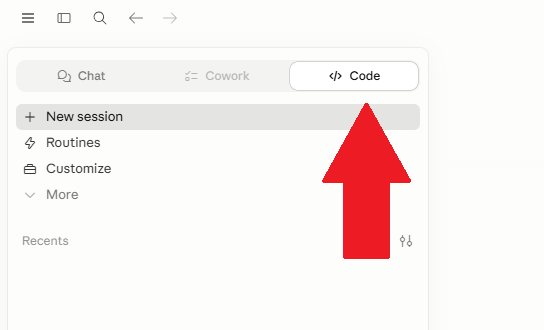
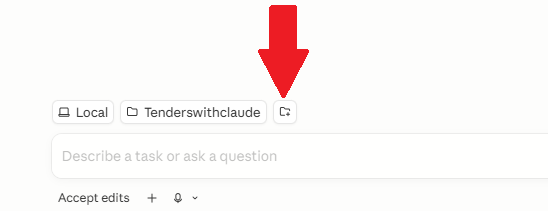
Switch to the “Code” tab at the top left and select the extracted skill folder at the bottom.
Start the workflow
Enter a prompt, for example:
“Find tenders for my company from the last seven days.”
What’s in the package
A workspace, ready to go
Once you have generated the assistant and extracted the ZIP file, you have the complete working folder. There is nothing to configure manually. The working folder has two parts: the folders for your data and the .claude/ setup folder with the assistant definition and permissions.
Folders for your data
Four prepared input folders:
- company-profile/: financial statements, certificates, insurance
- cvs/: your employees’ CVs
- projects/: list of your references
- staffing-plan/: resource plan (optional)
Plus a pre-filled company-profile.md with your industry data, CPV codes and search keywords, and a short README.md.
.claude/ setup folder
Contains the assistant definition and permissions:
- .claude/settings.json: permissions, preconfigured
- .claude/skills/bid-management-claude/: the assistant itself (SKILL.md plus five detailed guides)
Claude Code reads this folder automatically at startup. You don’t need to change anything here.
Limits
What the assistant does not replace
For individuals or small teams, this workflow runs well. As the bid team grows, two structural issues arise that an assistant cannot solve.
Several bid managers in parallel
When five people bid at the same time, nobody sees what the others are working on. Bid manager A promises Müller for tender 1; bid manager B promises Müller for tender 2. Without a central view of bids and staff reservations, a double booking is only a matter of time.
A maintained data foundation
If CVs are out of date, skills are not captured systematically or the company profile is stale, the recommendations will be inaccurate. Nobody knows which file is current anymore, and Claude guesses instead of knowing.
This is exactly what decídalo is for
A bid process for several managers in parallel. A central data store for skills, CVs, availability and references: a layer beneath your AI, not a replacement for it.
Permissions
How Claude Code handles permissions
By default, Claude asks for permission before every action: before file operations, internet access and commands. During a 10-minute run, that would mean a click every few seconds. The assistant package preapproves the typical operations so the workflow runs without constant interruptions.
Allowed without asking
- TED API calls via curl (search API and XML detail endpoint)
- WebFetch requests to the major German procurement platforms (DTVP, vergabe.bund.de, evergabe-online, HAD Hessen, Brandenburg, Niedersachsen, NRW, Berlin, Bayern, vergabe24, subreport)
- Reading, writing and editing files inside the workspace folder
- jq and unzip for file processing
When Claude still asks
This happens with commands that are not on the allow list, for example when Claude wants to download a PDF from an unknown platform or run a system-level command. You then see an approval prompt and can choose “Allow once”, “Always allow in this project (local)” or “Deny”.
Setup done, time to get started
Enter your company website, generate the assistant, open it in Claude.
Troubleshooting
Common issues and solutions
Claude does not recognize the assistant.
Check that the assistant definition is present. It is located in the setup subfolder of your working folder (see “What’s in the package” above). The most common mistake: the ZIP file was extracted into the wrong folder. Note: on macOS the setup subfolder is hidden, but you can make it visible with the shortcut Cmd + Shift + period.
Claude asks for approval on every command despite the preconfigured permissions.
Claude reads the permissions once at startup. If Claude was already running before the ZIP was extracted, simply quit Claude and open it again. If it keeps asking after that, get in touch with us; the permissions file was probably damaged during extraction.
Claude sometimes still asks a security question.
Claude has built-in safety heuristics that always ask once for certain commands, even if the permissions allow everything in advance. This is normal and intended. Simply choose “Always allow in this project (local)” in the approval dialog, and the question will not come up again.
The TED query fails.
This is rare; the TED database is usually stable. If it does happen, Claude can usually read the error message itself and correct the query. If it keeps failing, take a short break (5–10 minutes) and start again; sometimes the TED site is briefly overloaded. For persistent problems, contact us at support@decidalo.app.
The TED notice does not contain all the information.
Common with larger tenders: the XML only contains references to the tender documents, which are stored as a ZIP on the procurement platform. Claude detects this and proactively asks you to download the documents and place them in tender/<id>/attachments/. The analysis is then extended to include these sources.
Claude shows CPV codes, but I don’t need them.
Claude shows them for transparency. You don’t need to enter the codes. If the display bothers you, tell Claude: “Please leave the CPV codes out of the output.” The codes are then only used internally and no longer shown in the chat.